PowerShell and SQLite

I wanted to use SQLite with PowerShell, but without needing to rely on another module. Just SQLite… and PowerShell. So here is how to do that…

Step 1: Download and Prepare SQLite

SQLite is available for the .Net framework, which PowerShell rides on. Great! But you need to make sure that the SQLite binaries you download match the .Net version available to you. To check, open PowerShell and run $PSVersionTable and check the CLRVersion, it should look like below:

PowerShell Prompt Showing:

PS C:\> $PSVersionTable

Name                           Value
----                           -----
PSVersion                      5.1.26100.4061
PSEdition                      Desktop
PSCompatibleVersions           {1.0, 2.0, 3.0, 4.0...}
BuildVersion                   10.0.26100.4061
CLRVersion                     4.0.30319.42000
WSManStackVersion              3.0
PSRemotingProtocolVersion      2.3
SerializationVersion           1.1.0.1

Per above, I need the SQLite download for .Net 4.0.

If you download the wrong architecture, you will likely run into this error:

PowerShell prompt showing:

PS C:\> Add-Type -Path "C:\sqlite-netFx20-binary-bundle-Win32-2005-1.0.119.0\System.Data.SQLite.dll"
Add-Type : Could not load file or assembly
'file:///C:\sqlite-netFx20-binary-bundle-Win32-2005-1.0.119.0\System.Data.SQLite.dll' or one of its dependencies. An
attempt was made to load a program with an incorrect format.
At line:1 char:1
+ Add-Type -Path "C:\sqlite-netFx20-binary-bundle-Win32-2005-1.0.119.0\ ...
+ ~~~~~~~~~~~~~~~~~~~~~~~~~~~~~~~~~~~~~~~~~~~~~~~~~~~~~~~~~~~~~~~~~~~~~
    + CategoryInfo          : NotSpecified: (:) [Add-Type], BadImageFormatException
    + FullyQualifiedErrorId : System.BadImageFormatException,Microsoft.PowerShell.Commands.AddTypeCommand
An attempt was made to load a program with an incorrect format.

If you download SQLite for a version of .Net you don’t have and can’t run, you will likely get this one:

PowerShell prompt showing:
PS C:\> Add-Type -Path "C:\sqlite-netFx20-static-binary-bundle-x64-2005-1.0.119.0\System.Data.SQLite.dll"
Add-Type : Could not load file or assembly 'file:///C:\sqlite-netFx20-static-binary-bundle-x64-2005-1.0.119.0\System.Data.SQLite.dll' or one of its dependencies. Operation is not supported.
(Exception from HRESULT: 0x80131515)
At line:1 char:1
+ Add-Type -Path "C:\sqlite-netFx20-static-binary-bundle-x64-2005-1.0.1 ...
+ ~~~~~~~~~~~~~~~~~~~~~~~~~~~~~~~~~~~~~~~~~~~~~~~~~~~~~~~~~~~~~~~~~~~~~
    + CategoryInfo          : NotSpecified: (:) [Add-Type], FileLoadException
    + FullyQualifiedErrorId : System.IO.FileLoadException,Microsoft.PowerShell.Commands.AddTypeCommand
Operation is not supported. (Exception from HRESULT: 0x80131515)

Once you have your version figured out, download the matching SQLite binaries from https://system.data.sqlite.org/

As of today, for me, that is the sqlite-netFx40-binary-bundle-x64-2010-1.0.119.0.zip

Image from the SQLite download page for .Net 4.0 Binaries for 64-bit Windows

Next, and very important, you must unblock the zip file. You can do this by right-clicking the zip file, and selecting “Unblock” and then clicking “Apply”.

Showing the File Explorer's properties view of a zip file. At the bottom is a checkbox that is unchecked and it says "Unblock"

If you do not do this, when you unzip the files, all the decompressed files will also be blocked. If you try and then hook into the SQLite dll from PowerShell you will get the following error:

PowerShell prompt showing the following error:

PS C:\> Add-Type -Path "C:\sqlite-netFx40-binary-bundle-x64-2010-1.0.119.0\System.Data.SQLite.dll"
Add-Type : Could not load file or assembly 'file:///C:\sqlite-netFx40-binary-bundle-x64-2010-1.0.119.0\System.Data.SQLite.dll' or one of its dependencies. Operation is not supported.
(Exception from HRESULT: 0x80131515)
At line:1 char:1
+ Add-Type -Path "C:\sqlite-netFx40-binary-bundle-x64-2010-1.0.119.0\Sy ...
+ ~~~~~~~~~~~~~~~~~~~~~~~~~~~~~~~~~~~~~~~~~~~~~~~~~~~~~~~~~~~~~~~~~~~~~
    + CategoryInfo          : NotSpecified: (:) [Add-Type], FileLoadException
    + FullyQualifiedErrorId : System.IO.FileLoadException,Microsoft.PowerShell.Commands.AddTypeCommand
Operation is not supported. (Exception from HRESULT: 0x80131515)

Step 2: Adding and Using SQLite

Once you have the version figured out, files unblocked. Actually using SQLite is really easy.

First you must import the dll with the Add-Type command. You can just point it at the path to the DLL file. This is the line that will fail if you chose the wrong DLL or forgot to unblock the files.

Add-Type -Path "C:\sqlite-netFx40-binary-bundle-x64-2010-1.0.119.0\System.Data.SQLite.dll"

Then you can create a connection string defining your database’s file path and connect to it.

$connectionString = "Data Source=C:\sqlite-netFx40-binary-bundle-x64-2010-1.0.119.0\MyTest.db;Version=3;"

$connection = New-Object System.Data.SQLite.SQLiteConnection($connectionString)
$connection.Open() | Out-Null

If you get this error

Exception calling “Open” with “0” argument(s): “unable to open database file”

Then you likely do not have permissions to the file. SQLite will attempt to create a new db file if one does not exist. You may want to check if the DB has been initiated before using in further code.

From here, you should be good to go, but here are some rapid-fire scenarios to get you started.

Create a table

$Query = "CREATE TABLE IF NOT EXISTS mytable (id INTEGER PRIMARY KEY AUTOINCREMENT, name TEXT NOT NULL UNIQUE, creationtime DATETIME DEFAULT CURRENT_TIMESTAMP);"

$command = New-Object System.Data.SQLite.SQLiteCommand($Query, $connection)
$command.ExecuteNonQuery() | Out-Null
$command.Dispose() | Out-Null

Remember to dispose when you are done.

Also, lets make an index

$Query = "CREATE INDEX name_idx ON mytable (name);"
$command = New-Object System.Data.SQLite.SQLiteCommand($Query, $connection)
$command.ExecuteNonQuery() | Out-Null
$command.Dispose() | Out-Null

Insert into a table

$Query = "INSERT INTO mytable (name) VALUES (@name);"
$Name = "John.Doe"

$command = New-Object System.Data.SQLite.SQLiteCommand($Query, $connection)
$command.Parameters.AddWithValue("@name", $Name) | Out-Null
$command.ExecuteNonQuery() | Out-Null
$command.Dispose() | Out-Null

Note the use of Parameters. This helps protect against SQL injection attacks. You should use them whenever you are adding variable data into your query.

Query the table

$Query = "SELECT * FROM mytable WHERE name = @name;"
$Name = "John.Doe"

$command = New-Object System.Data.SQLite.SQLiteCommand($Query, $connection)
$command.Parameters.AddWithValue("@name", $Name) | Out-Null
$reader = $command.ExecuteReader()

while ($reader.Read()) {
    Write-Host ""
    for ($i = 0; $i -lt $reader.FieldCount; $i++) {
        Write-Host "$($reader.GetName($I)) = $($reader.GetValue($I))"
    }
}
$reader.Close() | Out-Null
$reader.Dispose() | Out-Null
$command.Dispose() | Out-Null

These commands have been silent so far, but this time we are getting data out of the database. This code should return:

id = 1
name = John.Doe
creationtime = <somedate>

Note that we are disposing the reader as well as the command this time. Both are disposable, so it’s good practice to dispose them when done using them.

We are also using parameters again, since the name we are putting into our query is variable.

Finally, at the end of your script

Surprise, you should dispose your connection to the database file itself

$connection.Close()
$connection.Dispose()

Hopefully this is useful to someone. If you are looking for a more complete example, I made a simple generic caching module using this info. Check it out on Github.
Pokemon Tiers Optimizations

On this site, there is a tier chart of my subjective ranking of all Pokemon to gen 8. The first draft of that tier list, had over 1000 images that would load. These images, at native resolution, would require a total download size of 138 MB! So my first task, was to resize them all, which I did using ImageMagick.

ImageMagick a great tool if you ever find yourself in that sort of situation. Resizing and converting the images to the webp format dropped the combined file sizes to about 10MB! An example command to resize a bunch of images in a folder would be:

magick mogrify -resize 160x160 -format webp -define webp:lossless=true *.png 

The webpage was still terrible to load though. The reason is because each image is a separate element that the browser must request and download. That is alot of overhead, and most browsers have a limit on how many simultaneous requests they allow. I don’t know what the limit is, but 1000 is certainly above it.

To work around that limitation, I stitched all the images into one file. This combined file dropped the total download size to about 5mb, which is good, but this also means the browser only needs to download a single file, to get all 1000+ images. An example command to stitch images into a grid like this is:

magick montage -tile 34x0 -background None -compose copy *.webp fullframe.webp

Using css styling, I then customized each element in the tier list to show just a small section of the greater image. For example:

background-image: url('./r/pokemon-images/fullframe.webp');
background-position: left -4800px top -3360px;
width: 160px;
height: 160px;

Thanks to these tricks, if you visit the tier chart, all the Pokemon images load up almost simultaneously.

This trick is not my own and it’s actually been in use for a long time and in multiple situations. For example, this trick is used in games, such as Minecraft, to reduce processing load. It’s good trick to keep in mind if you are ever in a situation where you are loading a bunch of resources and the overhead is bogging you down.

Authy: An anti-recommendation

My Discord app was acting up, and not sending messages or reading touchscreen input. I poked around my phone to see if I could find a cause and eventually stumbled across my Android version info. I hadn’t realized it but my phone had not received an update in nearly 3 years! This may be unrelated to my Discord problems, but it’s a larger concern for obvious reasons.

After a couple searches I found out OnePlus dropped support for my phone and no new updates were coming my way. I don’t want to shell out several hundred dollars to purchase a new phone to replace one that, at least on a hardware level, is still perfectly functional. So, after some research, I decided to flash my phone to LineageOS. It all went well, and my issues with Discord were even fixed. Noice. I restored most of my apps without issues except one, Authy.

When trying to log into the Authy app to restore my codes I get “The device does not meet the minimum integrity requirements”. Wtf? Because I am using a custom OS? It’s not even rooted! I have a few other authentication apps, Steam, Microsoft, etc and none of them complained or otherwise had problems restoring. Sadly, Authy had most of my codes, so I need them back somehow.

I managed to install Authy on my drawing tablet of all things, and now at least I could get back into my accounts, but I really need it on my phone. I’m not exactly lugging a drawing tablet around on a daily basis. I searched, but there is no export option. Not only is there no export option, that is by design!

I get the security implications of preventing exports, but at the same time… it’s my data, I should be able to back it up and restore it myself. It should be my decision to trust a phone with a custom OS over a phone with 3 years of known vulnerabilities and no future updates.

Failing to find an option to export the codes, I used an irritating combination of my phone, drawing tablet and PC over the course of 2 hours to swap the 2FA settings on all of my associated accounts to another 2FA application. Due to this, I’d recommend anyone on Authy to swap to another app before they end up in a similar situation.

Aegis gives you full control (and responsibility!) of your 2FA codes, whereas Microsoft Authenticator also locks you out of manually backing up your codes but at least in this case did not arbitrarily prevent me from restoring on LineageOS.

Running a GreedyCraft server with itzg/docker-minecraft-server

A quick guide on spinning up a GreedyCraft server in docker with the itzg/docker-minecraft-server container and docker-compose on Linux.

  1. Download the GreedyCraft server files zip file.
  2. Extract the files to a temporary folder. We need to make some changes.
    • Rename run-linux.sh to run.sh This is the shell file the docker container will expect, if you do not rename the file, the server will fail to start.
    • Edit run.sh to include the JVM custom flags. See the README_SERVER_INSALLATION.txt for more information about this. For example, assuming a 20GB allocation you could use:
java -Xmx20G -Xms20G -Xss4M -Dfile.encoding=GBK -Dsun.rmi.dgc.server.gcInterval=1800000 -XX:+UseG1GC -XX:+UnlockExperimentalVMOptions -XX:G1NewSizePercent=20 -XX:G1ReservePercent=20 -XX:MaxGCPauseMillis=50 -XX:+AlwaysPreTouch -XX:+UseStringDeduplication -Dfml.ignorePatchDiscrepancies=true -Dfml.ignoreInvalidMinecraftCertificates=true -XX:-OmitStackTraceInFastThrow -XX:+OptimizeStringConcat -XX:+UseAdaptiveGCBoundary -XX:G1HeapRegionSize=32M -jar forge-1.12.2-14.23.5.2855.jar nogui
  • Edit the server.properties files per the README_SERVER_INSALLATION.txt file. As of this writing, ensure your server.properties has the following lines somewhere in it:
difficulty=3
level-type=BIOMESOP
enable-command-block=true
allow-flight=true
  1. Re-zip your files. Name the zip file something like greedy.zip. The file structure in this zip should mirror the one you downloaded.
  2. Copy this zip file wherever you intend your server files to be. For example /var/docker/greedycraft
  3. Edit your docker-compose.yml file and add your configurations. For example, if using 20GB of memory and a data directory of /var/docker/greedycraft and a customized server zip file at /var/docker/greedycraft/greedy.zip a docker-compose.yml file would look something like (Customize memory and such as needed!):
version: "3"
services:
  greedycraft:
    image: itzg/minecraft-server:java8
    container_name: greedycraft
    ports:
      - "25565:25565"
    restart: unless-stopped
    environment:
      EULA: "TRUE"
      SNOOPER_ENABLED: "FALSE"
      MAX_MEMORY: "20G"
      ENABLE_ROLLING_LOGS: "TRUE"
      ENABLE_AUTOPAUSE: "FALSE"
      OVERRIDE_SERVER_PROPERTIES: "TRUE"
      MAX_TICK_TIME: "-1"
      MAX_PLAYERS: "32"
      TYPE: "CURSEFORGE"
      CF_SERVER_MOD: "greedy.zip"
      VERSION: "1.12.2"
    volumes:
      - "/var/docker/greedycraft:/data"
    networks:
      - external

networks:
  external:
  1. If all is well, you should be able to start your server by reloading your compose file by running docker-compose up -d from the same directory as your docker-compose.yml file.
  2. Monitor your server with docker logs greedycraft assuming you named the container greedycraft like in the example above. If you see repeating logs and docker container ls -a shows your container either restarting or with a short uptime, you may have an issue. Stop the container and review the logs to troubleshoot. If you see Stopping aura thread for dim xxx however, then you should be good to go! (Assuming no firewall issues and port-forwarding was setup correctly if running across networks, but those are outside the scope of this quick-guide.)

MIM Portal Patch Fails

Just a quick post. I ran into an issue updating the MIM Portal. Looking at logs, I found a line reading that a step had failed. The step that failed was just a quick command line run of net start fimservice. Odd step to fail on right?

After running the updater a few times I figured out the issue. The service just was not starting within the 5 second or so time limit of the net start command. Net start returned a non-zero return code and the fim portal service updater treated that as a failure.

The fix is pretty easy though. That net start command spawns in a new cmd prompt window. When you see it, just highlight a character inside the cmd prompt window and that will freeze the command. Check to ensure the fimservice service is started, then press the “enter” key while in cmd prompt to allow it to continue. Net start will see the service is running and return zero to the updater and the updater will happily finish up. Just keep in mind, you have to watch out for that cmd prompt, you only have about a 5 second window to catch and pause it!

Event Forwarding and Server Core

I setup Windows Event Forwarding on several servers to log to a Sever Core Event Collector server. I got the GPO setup and all. Since the collector is Core and has no option to open Event Viewer, I opened mmc.exe locally, and attached Event Viewer to remotely manage the Core server subscriptions. Once I was done, I tested it all and… nothing. The event source machines were throwing:

The forwarder is having a problem communicating with subscription manager at address http://collectingserver:5985/wsman/SubscriptionManager/WEC. Error code is 2150859027 and Error Message is The WinRM client sent a request to an HTTP server and got a response saying the requested HTTP URL was not available. This is usually returned by a HTTP server that does not support the WS-Management protocol.

Turns out, the Subscriptions section of Event Viewer never manages the remote computer even if you selected a remote computer when attaching the snap-in.

What finally clued me in, is I checked the collector build with PowerShell against the remote core server, and nothing popped up. The whole time I thought I was managing the core server, I had instead been setting up the collector on my own machine. So yeah, either use a local instance of the Event Viewer snap-in or wecutil.

Create SCCM Script Detection in PowerShell

This is mostly a post about me being dumb.

When you create an application in PowerShell for SCCM, you usually create detection methods with New-CMDetectionClause* cmdlets like New-CMDetectionClauseFile. So I was expecting there to be a matching New-CMDetectionClauseScript or something like that. But that does not exist. Googling this hardly helped as I kept getting results on how to use PowerShell detection methods, not how to create them from within PowerShell.

Turns out, the script detection method is baked into the Add-CM*Deployment methods. Such as:

$DetectionScript = @"
if ($SomeCondition -eq $true) {
	Write-Host "Installed"
}
exit 0
"@

Add-CMScriptDeploymentType -DeploymentTypeName "SomeDT" -InstallCommand "Setup.bat" -ApplicationName "MyApp" -ScriptText $DetectionScript -ScriptLanguage PowerShell -ContentLocation "\\SomeServer\SomeShare\PackageSource"

It’s in the documentation… I just never considered it could be part of the DeploymentType function and not it’s own DetectionClause function like the other types. It makes sense, don’t get me wrong… It lines up with the form in the admin console when manually creating the script-based detection method. I just did not think of it…

Since I am making a post on this, definitely check out the documentation on how SCCM uses the detection script output: https://learn.microsoft.com/en-us/previous-versions/system-center/system-center-2012-R2/gg682159(v=technet.10)#to-use-a-custom-script-to-determine-the-presence-of-a-deployment-type

MSRA issue after RC4 was disabled

We ran into an issue with Microsoft Remote Assistance (MSRA) after disabling RC4 encryption support. I was having a hell of a time troubleshooting the issue and eventually resorted to WireShark for troubleshooting.

WireShark for the MSRA traffic showed that the Encryption type used for MSRA is AES as it should be. No problem there. Then I looked at the kerberos traffic specifically and seen alternating KRB5KCD_ERR_S_PRINCIPAL_UNKNOWN and KDC_ERR-ETYPE-NOSUPP. So the issue was not MSRA but kerberos.

Diving further I found that the TGS-REQ packet in WireShark showed the principal target was not the machine as I expected, but instead, the end-user. So, fun fact there, when you MSRA to a machine, your kerberos ticket is generated for the end-user, not for the machine account. We checked the “This account supports AES” check boxes in AD for the target user, and still the issue occurred.

I checked the logs on the domain controller and came across one in the Kerberos-Key-Distribution-Center category. It was a KDCEVENT_NO_KEY_INTERSECTION_TGS which stated “While processing a TGS request for the target server, the account did not have a suitable key for generating a kerberos ticket (the missing key has an ID of #). The requested etypes were # 23 #. The accounts available etypes were 23. Changing or resetting the password of will generate a proper key.” This pretty much explicitly stated the fix.

While we had matching supported encryption methods, the target user had to change their password for the AES support to kick in! So, if you disable RC4 support, ensure your user accounts have the AES check boxes set, and then make sure they change their passwords shortly after, or at least before you need to use MSRA to assist them.

Optimize PowerShell – Getting and Filtering Data

As I was writing my previous post on optimizing Powershell, I thought of other tips I have had to use to speed up scripts in relation to getting data into PowerShell. Like before, I will start with a summary of recommendations and move onto details.

Summary

  • Silence your scripts. Any text printed to the console comes with severe time overhead. If you need progress updates, make sure you use Write-Progress over Write-Host.
  • If you are looking up data in an array at random, then turn your array into a hash-table instead.
  • When querying a server or system for data, try pulling all the data you need all at once, instead of one at a time. This can speed up your scripts, even if you pull more data that you actually need. This recommendation does heavily depend on the system you are querying and how much extraneous data you get back.

Console Output

A quick side note here. Outputting text to the console is very slow. You can speed up some commands, by silencing the output of the command. You have a few different ways of doing this. Lets look at them.

NameMethodTime (MS) per 5000 iterations
Piping to Out-Null$I | Out-Null107.8185
Saving out to $null$null = $i9.9016

So if you need to silence something, saving the output to a variable or $null is far faster than piping to Out-Null. Now that we know the faster method of silencing a command, lets see just how slow printing to the console is.

NameMethodTime (MS) per 5000 iterations
Print CommandWrite-Host $I4434.8804
Silenced$null = $I9.9016

That is around 500 times faster. So if you need speed, consider removing unneeded Write-Host commands, or silencing functions by saving their output to $null. Some good news though, Write-Progress is fairly safe to use.

NameMethodTime (MS) per 5000 iterations
Write ProgressWrite-Progress642.605

So use Write-Progress over Write-Host if you need progress updates. The script used to pull these metrics:

Converting an Array to a Hashtable

PowerShell often returns data in Arrays. These arrays are not very fast to query for a single item however. This does not matter for small arrays, or if you will iterate through each item in random order, however if you need to pull a single item out of the array based on one of it’s properties, it can be slow unless you do something to index the data.

The most common method I use, is I turn the array into a hash-table. This only works if the property you are looking each object up with is unique to the array.

I will not focus on the speed metrics here, I already covered hash-table metrics in my last post. I want to show you -how- to convert an array into a hash-table.

First, you need to choose a property that you will query the data on. This is more often than not the object name. If you are querying users from AD, this could be the sAMAccountName or something similar. The only restriction, is that for every object in the array, this property must be unique!

$AllADUsers = Get-ADUser
$UserHashTable = @{}
foreach($User in $AllADUsers) {
    $UserHashTable.Add($User.Name,$User)
}

That’s it. We now have an indexed hash-table of our array. To look up users from now on, we would use:

$MyUser = $UserHashTable["John Doe"]

A more extensive example is included in the script below.

Sorted Array and Binary Search

Another tool you can use to speed up searches, is to sort your arrays and use BinarySearch. This does not really work on generic arrays, so if you go this route, make sure you use strongly typed arrays. This also works best on arrays of core data types (Int, string, float, etc), instead of complex objects. If you need to search an array of complex objects based on one of their properties, consider hash-tables instead. Otherwise, you would need to create your own IComparable class…

Lets see how to create, sort, and search these arrays. To create the array, use the .Net method of creating them. In these examples, I will use a string array.

$ItemArray = [string[]]::new($ItemCount)

Next fill in your array with your data. Then, call the sort method on your array. This sort method would be where you enter your custom IComparable object. IComparable objects already exist by default for the core data types, so it is not needed for a string array.

[Array]::Sort($ItemArray)

Finally, call the BinarySearch() function when search for an item in the array, or for the existence of an item in the array. Instead of $ItemArray.Contains() use:

([Array]::BinarySearch($ItemArray, $ItemToFind) >=0)

And instead of $ItemArray.IndexOf($ItemToFind) use:

$ItemIndex = [Array]::BinarySearch($ItemArray, $ItemToFind)

I cover the speed metrics of this in my last post. For a more complete example, see the following script:

Getting Data

If you are querying alot of data, this is likely a bottleneck in your script, there are some ways you can speed this up however. In general, pulling all your data at once is faster than pulling individual objects one at a time. This applies to many commands but I can attest to Get-ADUser and Get-Item/Get-ChildItem. To the metrics!

NameMethodTime (MS) per 500 iterations on 100 files
Get files 1 at a timeGet-Item -Path <FilePath>11227.0608
Get all filesGet-ChildItem -Path <FolderPath>1148.6165
Get all file namesGet-ChildItem -Path <FolderPath> -Name664.0743
Get all files by wildcardGet-Item -Path “<FolderPath>\*”4060.0878

We can see that pulling all files is faster than pulling them one at a time. Also, if you only need the file names, then adding -Name to Get-ChildItem is faster than having PowerShell grab all file info.

This does not tell the full story. What about filtering it? When we pull one at a time, we have the one file that we need, but if we pull all of them, then we need to search our array and that adds time. But how much? Not a lot if you create a hash-table first!

NameMethodTime (MS) per 500 iterations on 100 files
Get files 1 at a timeGet-Item -Path <FilePath>11227.0608
Pull all files into a hash-table and query$ResultArray = Get-ChildItem -Path $MetricFolder.FullName
$ResultHashTable = @{}
foreach ($File in $ResultArray) {
$ResultHashTable.Add($File.FullName, $File)
}
for($I=0;$I -lt $Files; $I++) {
$null = $ResultHashTable[(Join-Path -Path $MetricFolder.FullName -ChildPath “$I.txt”)]
}
3708.0087

This is so much faster, that even if you pull twice as many files as you need, it is still faster than pulling the files one at a time! In this next example, I doubled the files in the directory, but still only query for 100.

NameMethodTime (MS) per 500 iterations on 100 out of 200 files
Pull all files into a hash-table and query$ResultArray = Get-ChildItem -Path $MetricFolder.FullName
$ResultHashTable = @{}
foreach ($File in $ResultArray) {
$ResultHashTable.Add($File.FullName, $File)
}
for($I=0;$I -lt $Files; $I++) {
$null = $ResultHashTable[(Join-Path -Path $MetricFolder.FullName -ChildPath “$I.txt”)]
}
5016.6214

So even if we pull twice as many files into the hashtable than we need to query, it is still twice as fast as pulling the files one at a time! Note that when creating the hashtable, I am using the .Add() function. This is far faster than the $HashTable+=@{Key=Value} per my previous post. For the script I used to pull these metrics, see:

Optimize PowerShell – Arrays and Loops

Sometimes, PowerShell is slow, especially when you are dealing with a large amount of data, but there are ways of speeding things up depending on what you are doing. This post will focus on how to speed up loops, arrays and hash-tables. All metrics were gathered in Windows 10 1909 PSVersion 5.1. Lets start with the summary.

Summary

  • Pre-initialize your arrays if possible. Instead of adding things to your array one at a time, if you know how long your array needs to be, create it at that length and then fill it.
    • If you do not know what length the array will be, create a list instead. Adding objects to lists is far faster than adding to an array.
  • If you need to do random lookups on a set of data, consider sorting your Array/List and then call BinarySearch()
    • Avoid searching by piping an array to Where-Object, either turn it into a hashtable, or sort the array and use BinarySearch()
  • When adding items to a hash-table, use the Add() function
  • When looping through objects, consider using a normal foreach(){}

Arrays and Lists

Now for the actual metrics. You can find the scripts used under each section. For this section, we’ll look at arrays/lists. First, creating and filling.

Most methods of creating and filling arrays are fairly similar. The only noticeable slowdown is if you use PowerShell’s native array, and do not pre-initialize it. This is because on the back-end, whenever you add to the array, the computer effectively re-creates the entire array with each add.

NameMethodTime (MS) per 10000 iterations
Native Array$PSArray = @(); $PSArray += $i;1738.6903
Initialized Native Array$PSArray = @(0)*$Iterations; $PSArray[$i]=$i;28.6651
Initialized .Net Array$PSArray = [int[]]::new($Iterations); $PSArray[$i]=$i;26.2101
.Net List$PSArray = [System.Collections.Generic.List[int]]::new();
$PSArray.Add($I);
22.6374

Now on to read performance. In this test, I am just using a simple .Contains() check. While the performance does vary depending on the type of array, we are sub 1-second for 10000 iterations. This is not noticeable to humans. The only noticeable difference is if you pipe your array to Where-Object for searching. That took 11 minutes! If you really need speed though, sorting your array and using BinarySearch is the way to go.

NameMethodTime (MS) per 10000 iterations
Native Array Contains$PSArray.Contains($i)177.2726
.Net Array Contains$PSArray.Contains($i)38.632
.Net List Contains$PSArray.Contains($i)87.9633
.Net List BinarySearch$PSArray.BinarySearch($i)23.1007
Native Array with Pipe Filtering$PSArray | Where-Object {$_ -eq $i}680831.936

Lets look take a look at hash-tables. Hash-tables are useful as they allow you to assign a key to an object, and then query that quickly at a later time. When adding to hash-tables though, the computer has to make sure the key being added is unique to the hash-table. This has a noticeably negative effect when using the Native PowerShell hash-table. At 22 seconds for 10000 items added to the hashtable, this is still do-able for most scripts. That said, if you add more items to it, it just keeps getting slower. A quick and easy change is to use the Add() function instead of the $HashTable += @{} pattern. If you do that, then there is no real performance difference between the native PowerShell hashtable and a .Net Dictionary.

NameMethodTime (MS) per 10000 iterations
Native Hashtable$PSArray = @{};
$PSArray += @{$I.ToString()=$I};
22859.229
.Net Dictionary$PSArray = [System.Collections.Generic.Dictionary[string,int]]::new();
$PSArray.Add($I.ToString(), $I);
30.5428
Native Hashtable with Add Function$PSArray = @{};
$PSArray.Add($I.ToString(),$I);
32.5752

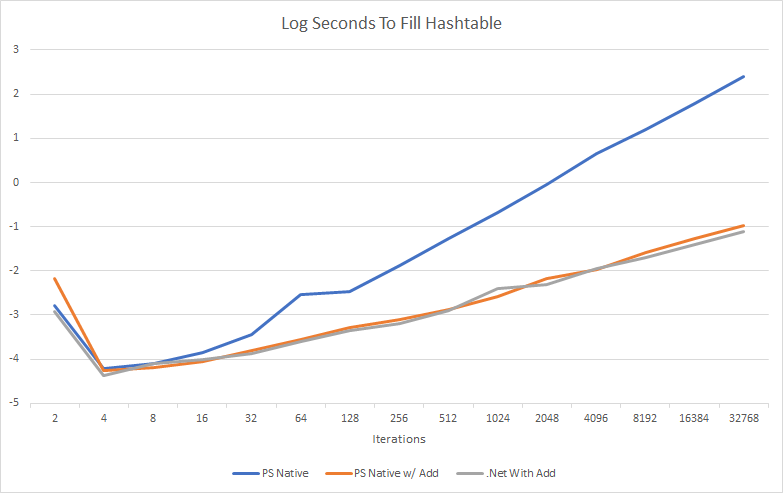
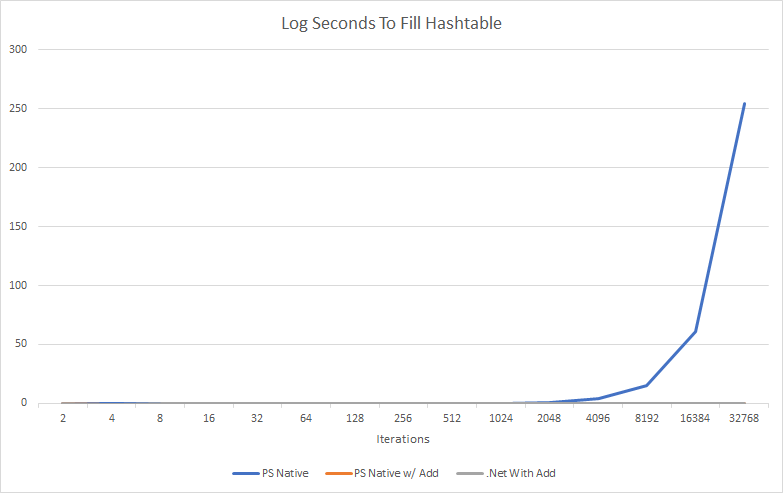
To exemplify how slow hastables can get the more items you add, I charted it out.

Well, that is not super useful is it. All it shows is using the $HashTable += @{} is so slow, the other methods don’t even register. Lets look at that in log10 scale.

Definently make sure you use the .Add() function for any large hash-table!

For reading hash-tables, I just checked how quickly keys could be searched. Both .Net and the native method of creating hash-tables were suitably fast.

NameMethodTime (MS) per 10000 iterations
Native Hashtable Contains$PSArray.ContainsKey($i)31.041
.Net Hashtable Contains$PSArray.ContainsKey($I)21.0664

Scripts used for metrics gathering and the Excel sheet used to create charts.

Loops

Finally lets look at loop performance. If you need to perform some action on every item in a collection, you have several options. It would take large arrays to notice much of a difference in which method you use, but in my tests, using a foreach(){} loop outperformed all other methods and piping a collection to foreach-object {} had the worse performance.

NameMethodTime (MS) for 100000 iterations
For Loopfor ($i =0;$i-lt $iterations;$i++){…}142.6532
Foreach Loopforeach ($item in $myarray) {…}62.4789
Piping to foreach-object$myarray | foreach-object {…}389.7384
.ForEach function$myarray.ForEach{…}160.2419

Scripts used to pull these metrics